How AI Built a Data Center Configurator in Design++ in 5 Days
Bill Cochell
Director, Custom Applications at Design Power
Here is what happened when I used AI to build a data center configurator in 5 days.
Design++® is Design Power’s knowledge-based engineering system for configuration, engineering, and design automation. Companies use Design++ to capture their engineering rules and automatically generate 3D models, 2D drawings, engineering reports, and sales proposals.
A few weeks ago, I used Claude, Anthropic’s AI, to help build a rack configurator in Design++. This week I tried something more ambitious: the conceptual layout of an entire data center. I came away genuinely impressed.
There is a fascinating contrast here: Design++ is symbolic AI—engineering knowledge captured as rigid, deterministic rules. Claude is machine learning—a probabilistic AI that learns and adapts. By pairing the AI that learns with the AI that doesn’t, the learning AI wrote the rules for the symbolic engine.
View a 30-second video of the resulting data center configurator in Design++.
What I did by hand
My hands-on part was small:
- Created a new, empty Design++ project
- Copied the library and rules file from the rack configurator project into it
- Drew the AutoCAD blocks: a generic cabinet and cable tray tees
Everything else, including the class library, the design rules, the sizing logic and the geometry, was written by Claude, working in Claude Code with an MCP (Model Context Protocol) connection to Design++. My role was telling Claude what I wanted, answering design questions, setting a few defaults and reviewing the results in AutoCAD.
What one afternoon produced
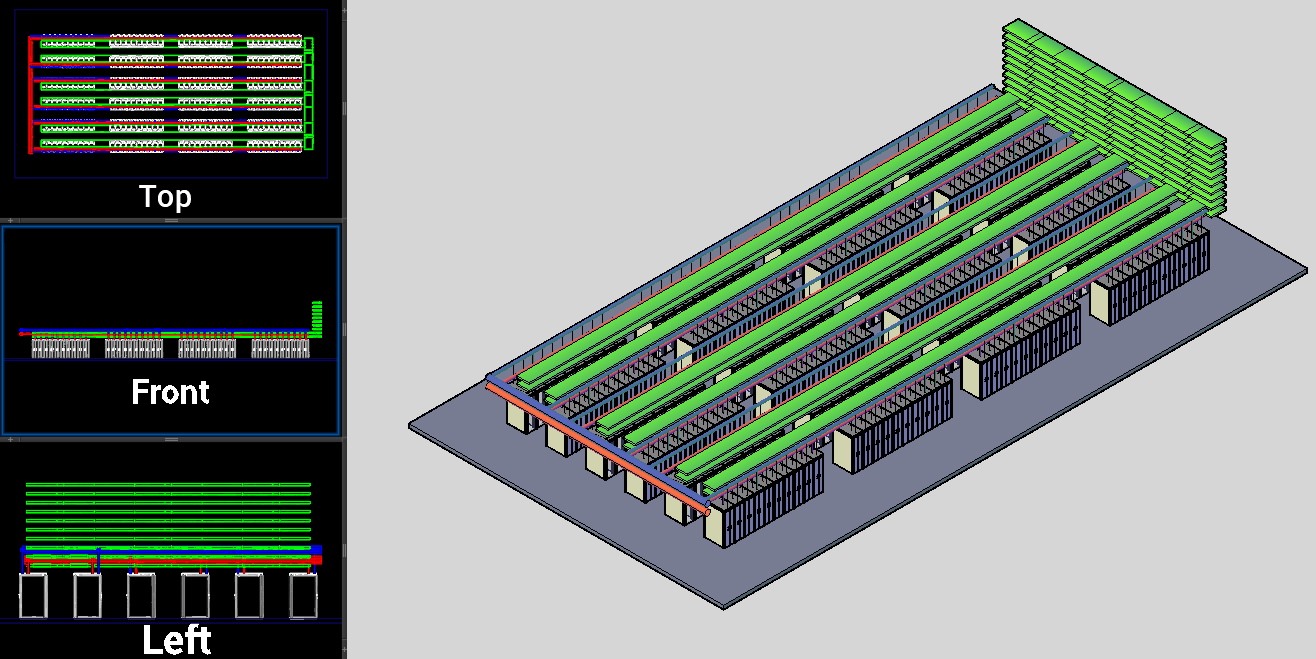
In a single afternoon, the model could lay out a complete data hall:
- Rows and columns of cabinets. “6 rows of 10 cabinets in 4 columns” gives 240 cabinets, each numbered and labeled (for example R3-C2-05).
- Hot and cold aisles. Pairs of rows face each other across a cold aisle, a hot aisle separates the backs of neighboring pairs, and cross aisles separate the columns. Every aisle width is an input, and the model flags any aisle narrower than its minimum.
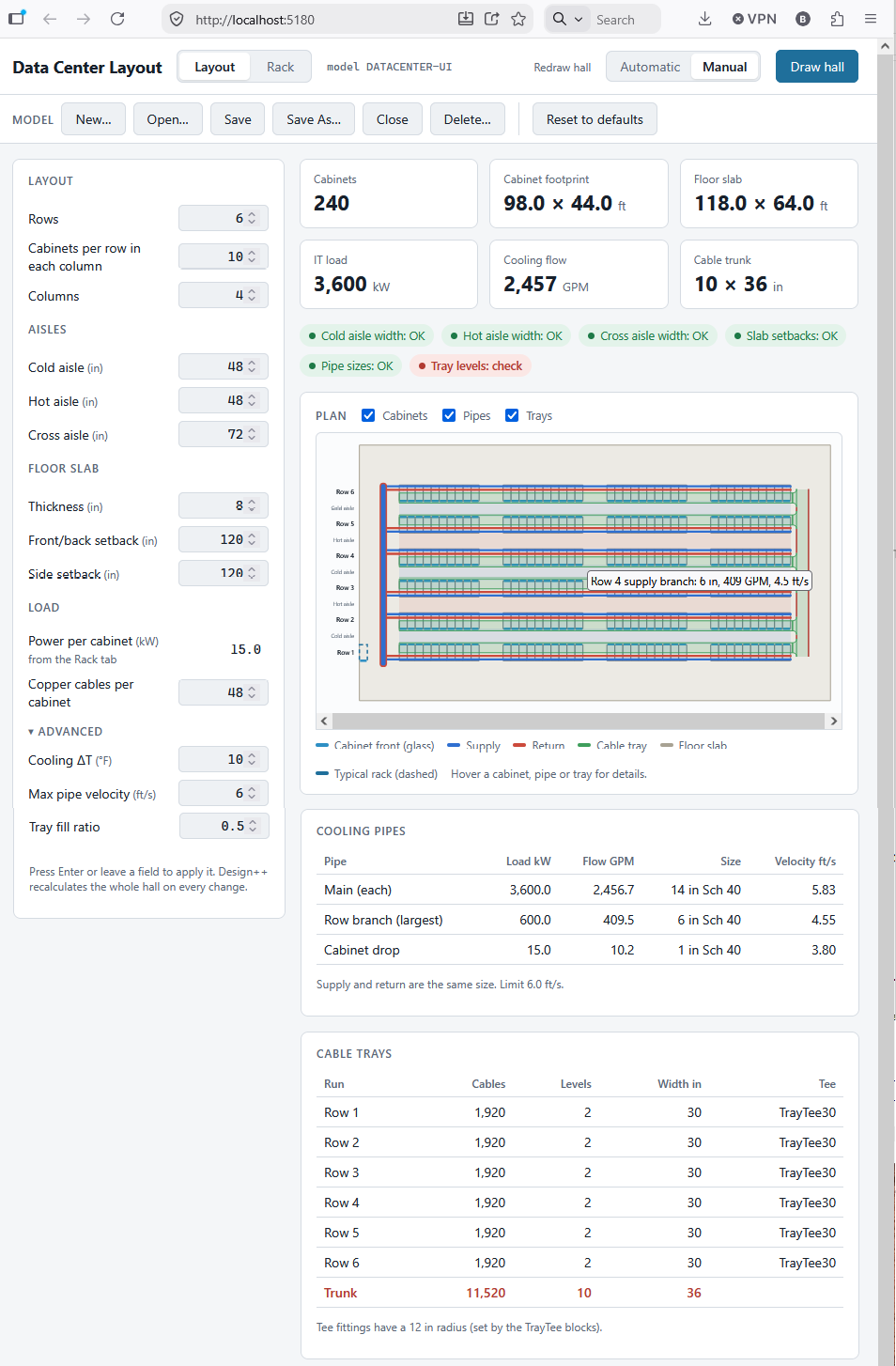
- A liquid cooling loop. Supply and return drops to every cabinet, branches along every row, and mains for the hall. Each pipe is sized from the load it carries: kW to gallons per minute, then the smallest Schedule 40 pipe that keeps the velocity under 6 ft/s. At 15 kW per cabinet, that gives 1 in drops, 6 in row branches and 14 in mains.
- Overhead cable trays. Each row has a tray run feeding a trunk, sized from the number of copper cables it carries. When one tray isn’t enough, the run stacks another level.
Because this is Design++, it’s all connected. Change the number of rows, the cabinets per row, the aisle widths or the kW per cabinet, and the cabinets, pipes and trays all move and resize. That cascading recalculation is what Design++ does best, and Claude used it the way an experienced Design++ developer would.
The model also pushes back. With all 240 cabinets feeding a single trunk, the trunk needs 10 stacked tray levels, and the model flags that as over the limit. A design tool should tell you when a layout doesn’t work.
Openings in the trunk tray
Initially the cable trays were modeled as boxes and the branches extended into the trunk trays:
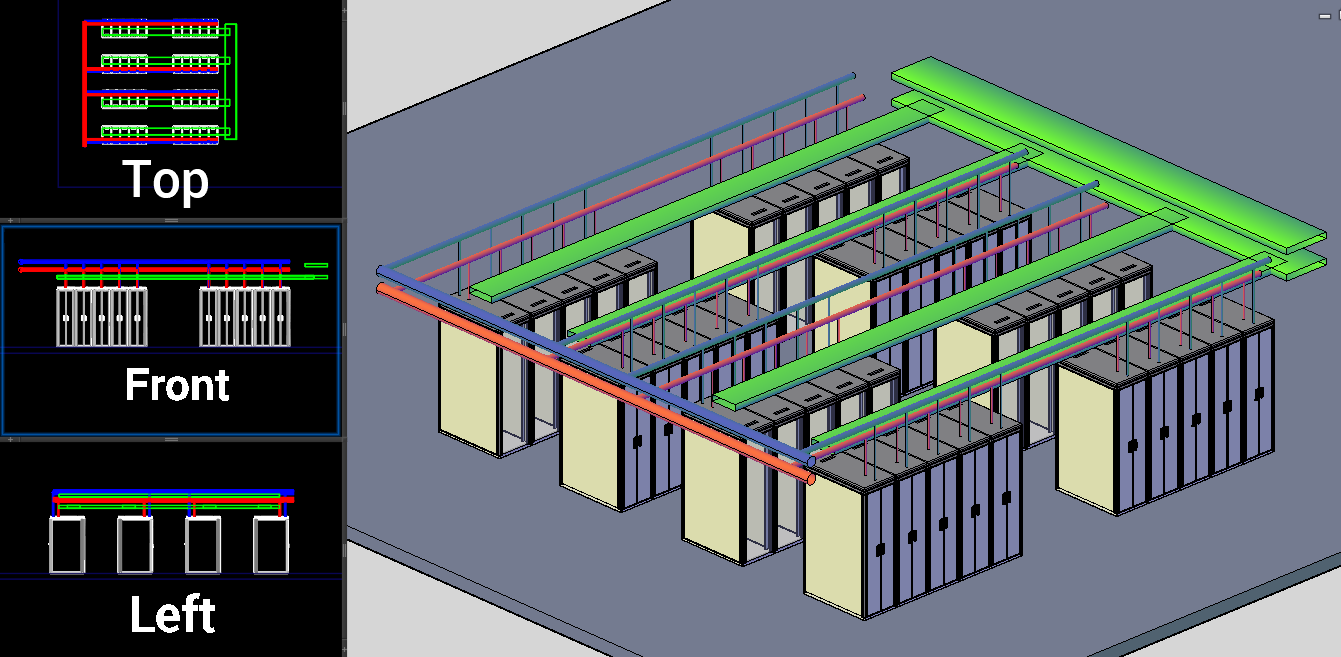
Switching to open-top trays was a simple fix. I supplied the U-shaped profile myself:
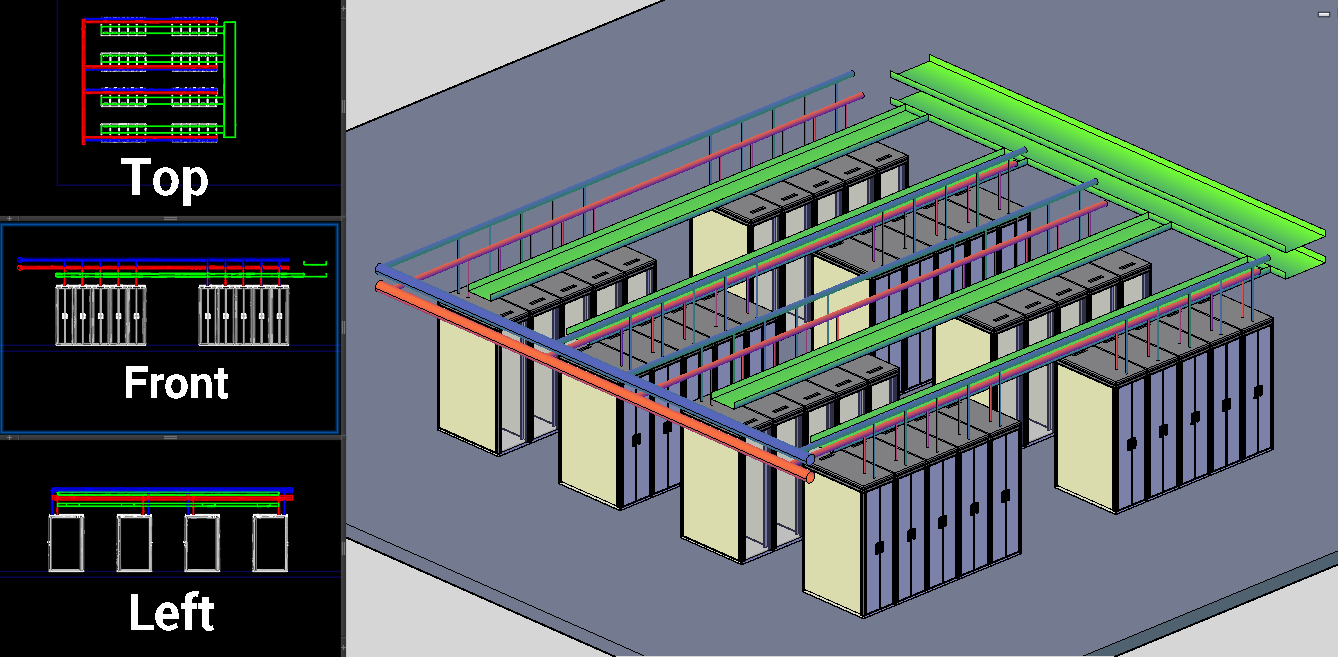
In AutoCAD, I could still see the row trays running into the solid wall of the trunk tray, so I asked whether the trunk could have openings where the branches join it. In Design++, an extruded shape has the same cross-section along its whole length, so you can’t simply cut a hole in one. Claude worked this out and proposed breaking each trunk level into segments that alternate between a full two-sided channel and a one-sided channel wherever a row tray meets it.
That’s a significant change in Design++. Claude added a new level to the product structure, plus a rule that works out the segment boundaries from the position and width of every row tray. When a row tray gets wider, its opening widens with it.
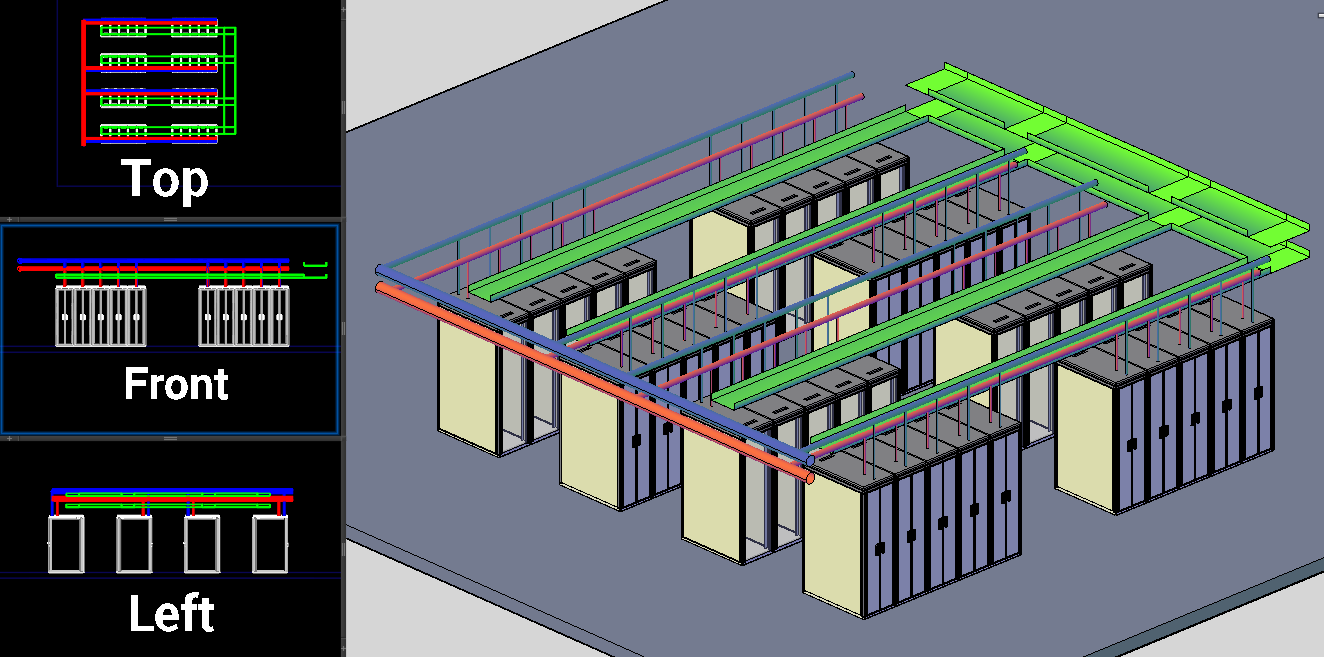
This time I didn’t provide the profile. Claude started from the U-shaped profile I’d given it earlier and dropped only the wall that faces the rows.
Tees at the connections
Finally, I asked whether the corners where the row trays meet the trunk should be chamfered or rounded. Claude explained that real installations use tee fittings with a standard inside radius, suggested 12 inches for every tray width, and spelled out how to draw the blocks: what the block covers, where the insertion point goes and which way it faces. I drew 18, 24 and 30-inch tees to that spec, and it fitted them in seamlessly. The row trays now stop short to make room, the trunk openings widen by the radius, the trunk extends to hold the end tees, and the right tee is picked automatically from each row tray’s width. The square 90° corners are gone.
It wasn’t flawless
Claude made mistakes. Early on, it drew only the top-level assembly, which has no geometry, until I showed it the correct function syntax. Once, it added a rule before creating the attribute that rule needed, and Design++ threw an error. It also passed along a wrong note about where the blocks should be stored. Each time, it fixed the problem quickly and recorded the lesson in its project notes. It was also upfront about what it couldn’t check, such as which way the cabinet block faced, and asked me to confirm those in AutoCAD.
UI Development
An application is only as good as its user interface. If it’s poorly designed or hard to use, it won’t live up to its potential.
When we discussed the purpose of this application, Claude suggested a web-based UI. I have essentially no experience building web UIs. I agreed anyway.
Like the application itself, the UI was built iteratively. I specified the input fields. Before writing any code, Claude reviewed the earlier Rack Configuration project to see what it could reuse, decided what it would do differently, and suggested adding a plan view of the layout.
The entire UI took about a day of my time, most of it spent testing, requesting changes, and adding features.
I gave no input on the plan view. Claude drew the floor slab, cabinets, pipes, and trays on its own, then added tooltips that identify each object when you hover over it.
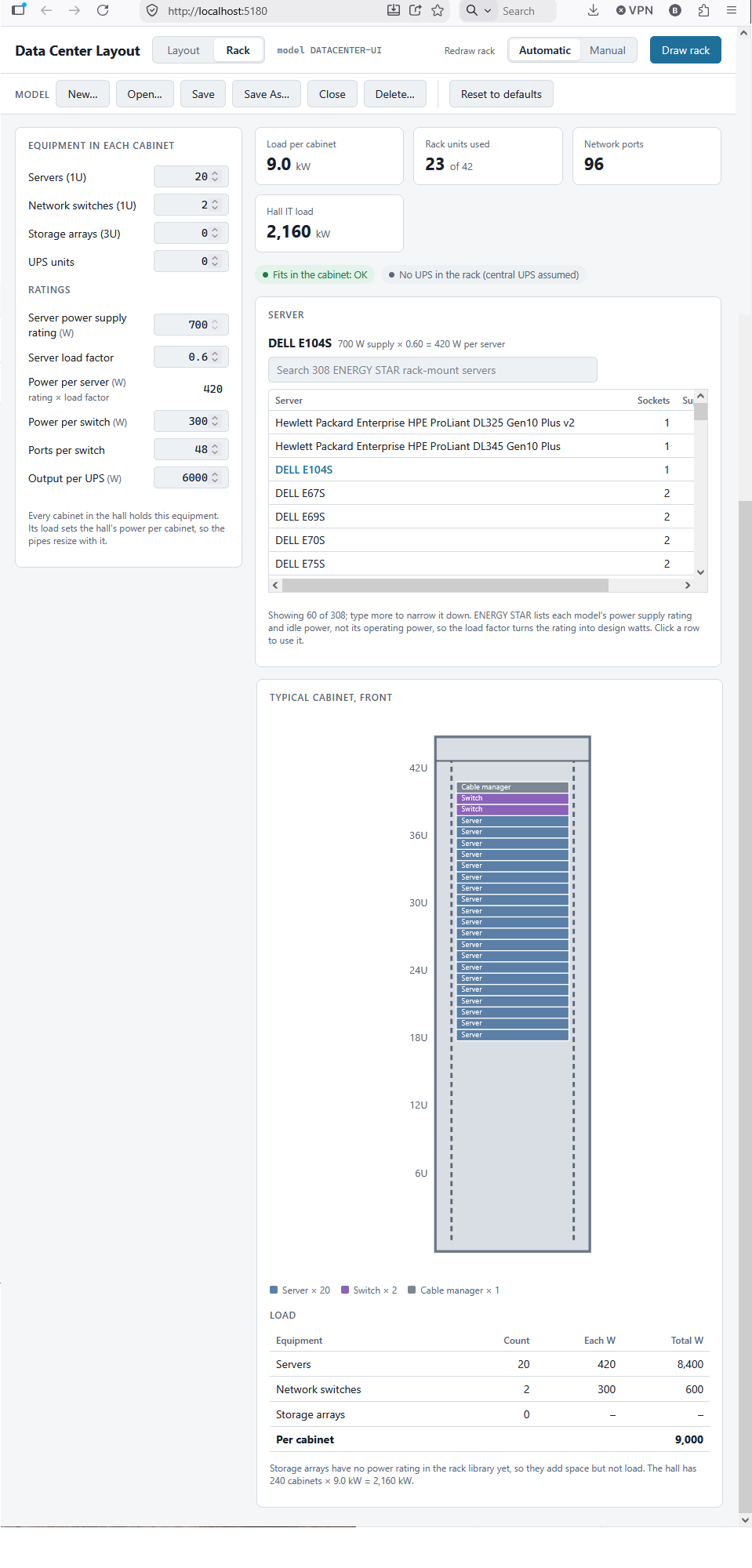
The Rack tab sets the equipment in each cabinet. It searches 308 ENERGY STAR rack-mount servers and turns the selected server’s power supply rating into a design load, which sets the power per cabinet for the whole hall. Change the server, and the pipes resize.
I was blown away. An experienced web developer would have needed weeks to build and test this UI by hand. With my web experience, I’d still be reading tutorials.
Data Center Layout User Interface
Data Center Common Rack User Interface
 What this means
Design++ has always been about capturing engineering knowledge as rules, so designs stay consistent and correct as inputs change. What surprised me was how quickly Claude can now write those rules. Over a few sessions of conversation, it produced a model an engineer could actually use for conceptual data center design.
I will certainly pair AI with my future Design++ projects. I see it as a real opportunity to make Design++ application development easier and faster.
The process
This was completed in less than a standard work week, using Claude Code in the Claude desktop app with Sonnet 5 and Opus 5.5 models. Claude created the classes and attributes and wrote well-documented Design++ rules. It also kept Markdown notes of the decisions made and the lessons learned, so each new session picked up where the last one left off.
I did the manual AutoCAD work, monitored progress, and taught Claude my coding style. I also had it adopt good programming and CAD practices, such as keeping Lisp functions out of rule files, using Pascal case for layer names, and letting colors come from the layer.
It was like having a very capable co-worker: one that does what you ask, comes up with good ideas when you haven’t given it enough information, and corrects mistakes, yours or its own, once they’re pointed out. Sometimes it catches them before you do.
Claude drafted a summary of this document. I edited it and added the UI section and the images.
Comments (0)